
Microsoft Authenticator Invalid QR code [Fix]
Microsoft Authenticator is a free app from Microsoft that helps you secure your Microsoft and other supported online accounts, including your Go…
Download Windows Speedup Tool to fix errors and make PC run faster
Microsoft Authenticator is a free app from Microsoft that helps you secure your Microsoft and other supported online accounts, including your Google account. When setting it up for your Microsoft account, you have two options: add your Microsoft account manually or scan the QR code. The QR code method is the simplest method to add Authenticator to your Microsoft account. However, some users report that the QR code is not working. According to them, Microsoft Authenticator shows an Invalid QR Code message. This article will help you resolve this problem.
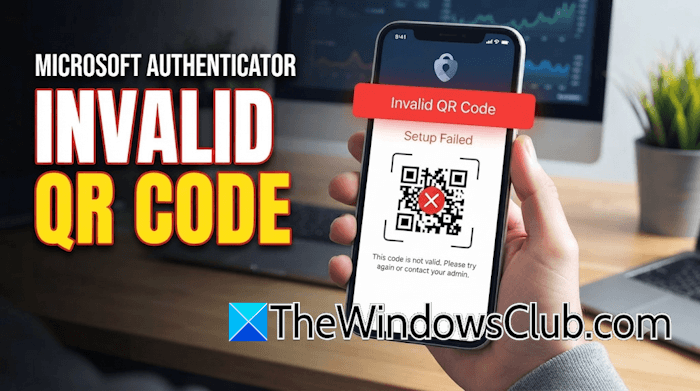
Use the following fixes if Microsoft Authenticator shows an Invalid QR Code message while setting it up for your Microsoft account. Before proceeding, check the date and time on your phone. If it is incorrect, correct it and try again.
- Regenerate the QR Code
- Disconnect from VPN (if applicable)
- Connect to another network
- Contact your administrator
- Clear app data and cache
- Sign in to Authenticator manually
- Reinstall the app
All these fixes are explained in detail below:
1] Regenerate the QR code
Try generating the QR code again. Cancel the Authenticator setup and sign out of your Microsoft account. Now, sign in to your Microsoft account and set up the Authenticator again to generate a new code. Now, check whether the error occurs.
2] Disconnect from VPN (if applicable)
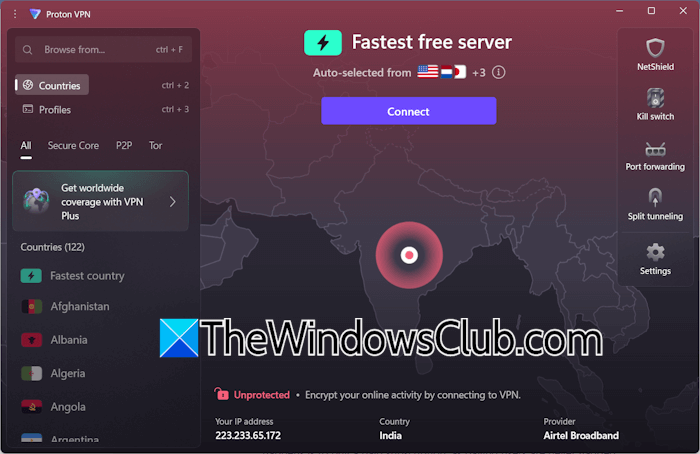
A VPN connection can secure your network but may cause issues when setting up Authenticator for your account. Therefore, if you are connected to a VPN, disconnect it and try again.
3] Connect to another network
If the issue persists, connect to another network. If your phone is connected to your WiFi, switch to another WiFi connection (if available). Alternatively, you can disconnect from the WiFi and turn on your mobile data. Now, check if Authenticator can scan the QR code.
4] Contact your administrator
If you are trying to set up Authenticator for your school or work account, your administrator may have configured a multifactor authenticator policy for your account. Microsoft helps administrators manage the deployment of multi-factor authentication by configuring the Microsoft Entra ID Protection Policy. Contact your administrator to know if such a policy is configured for your account.
5] Clear app data and cache
If the issue persists, clear app data and cache. Clearing the app data will delete all the email accounts added to Microsoft Authenticator. Therefore, before you begin, add other sign-in methods to your accounts. This will protect you from getting locked out of your account(s) permanently.
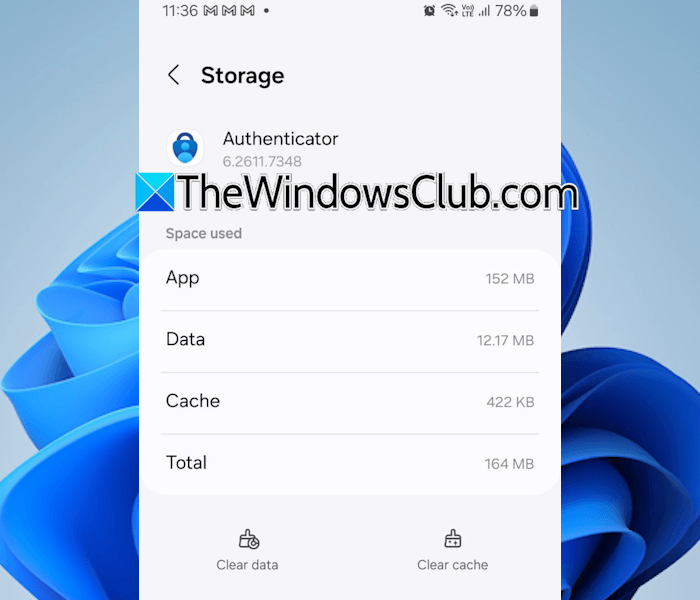
Android users can follow the steps provided below:
- Open your phone settings.
- Select Apps.
- Look for Authenticator in the list of installed apps. Once you find it, select it.
- Now, select Storage.
- Tap Clear data and Clear cache.
Unlike Android, iPhone does not have an option to delete app data and app cache. Therefore, you can offload the app to clear its cached data. Follow the following instructions:
- Open your iPhone settings and select General.
- Now, select iPhone Storage.
- You will see the list of all installed apps. Select Authenticator from the list.
- Click Offload app.
Offloading the app will free up some space used by the app. Hence, it also clears the app cache. However, the app data will still remain on your iPhone. Therefore, if you want to delete the app data, select the Delete app option. Both of these options uninstall the Authenticator app from your phone. The only difference between these options is that the latter one deletes the entire app data and app cache.
6] Sign in to Authenticator manually
If the issue persists, skip the QR code scanning method and try to add your Microsoft account manually. For this, open the Authenticator app on your phone and click the Plus icon in the top right corner. Now, select Personal account. Tap Sign in with Microsoft. On the next screen, enter your Microsoft account username and password. Follow the on-screen prompts to verify your identity. After that, your Microsoft account will be added to the Authenticator app. Now, when you sign in to your Microsoft account in your web browser, you will have to approve the sign-in request in the Authenticator app on your phone.
7] Reinstall the app
If the issue persists, try uninstalling and reinstalling the app.
That’s it.
How do I reset my Authenticator?
There is no manual option to reset the Microsoft Authenticator app. To reset your Authenticator app, clear its app data. Clearing app data is easy on Android, but on iPhone there is no option to clear specific app data. Therefore, iPhone users have to reinstall the app to reset it.
Why can’t my Microsoft Authenticator app scan a QR code?
If your Microsoft Authenticator app is not scanning the QR code, make sure you have granted the required permissions to the app. Another cause of this issue is a dirty camera lens. Clean your phone’s camera lens and scan the code again. If the issue persists, regenerate the code and try again.
Read next: How to remove Authenticator from Microsoft Account.

Nishant is an Engineering graduate. He has worked as an automation engineer in the automation industry, where his work included PLC and SCADA programming. Helping his friends and relatives fix their PC problems is his favorite pastime.
内容来自 The Windows Club,版权归原作者所有。
阅读原文 ↗


