
Microsoft PC Assist: AI-Powered Troubleshooting and Monitoring Tool for Windows 11
Microsoft PC Assist is a new, free, AI-powered Troubleshooting and Monitoring Tool for Windows 11. In this post, we will show you how to download, install, and use PC Assist. The tool features a minimal interface where you can access troubleshooters for common problems, check system storage health and reclaim space, monitor real-time network speed and live data consumption, and use everyday tools from Microsoft Bing. While we already have the Settings app, Get Help app, Task Manager, and PC Manager for most options, this tool brings them into one platform and makes them easier to access.
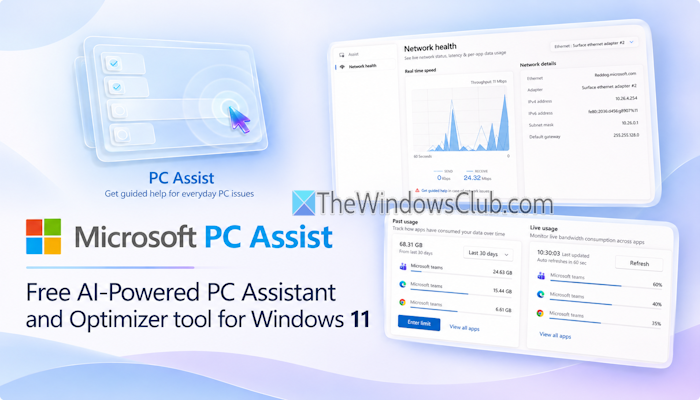
Let’s see how to download, install, and use the Microsoft PC Assist app for Windows 11:
Download and installation process for PC Assist
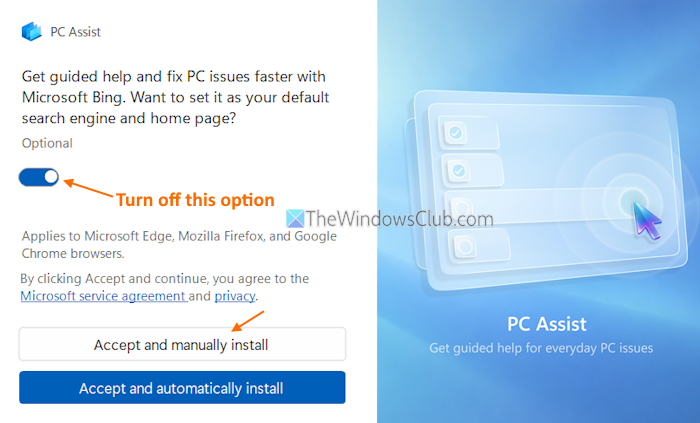
You can download the Microsoft PC Assist tool from pcassist.microsoft.com. The .NET Desktop Runtime (10.0) is also needed to run this tool. At present, the tool is downloaded as a PCAssistInstaller_en_v0.4.4.0 EXE file, and it is 68.9 MB in size. Execute the downloaded file to install it.
Now, here’s the catch. The toggle to set Microsoft Bing as the default search engine and homepage for Edge, Chrome, and Firefox browsers is turned on by default. So, during the installation, you may off this option and using the Accept and manually install button.
Once installation is complete, open its interface.
Using Microsoft PC Assist
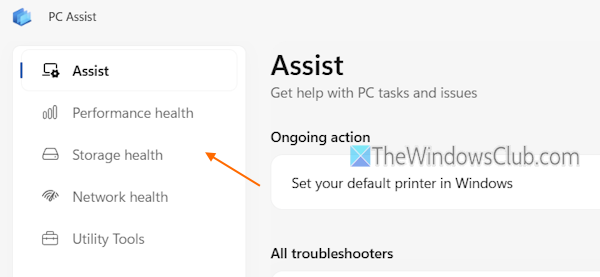
The Microsoft PC Assist tool has a clean, simple, and non-resizable interface. It includes five main sections on the left that cover all its features. These are:
- Assist section
- Performance health section
- Storage health section
- Network health section
- Utility Tools.
Let’s check each section in detail.
Assist section
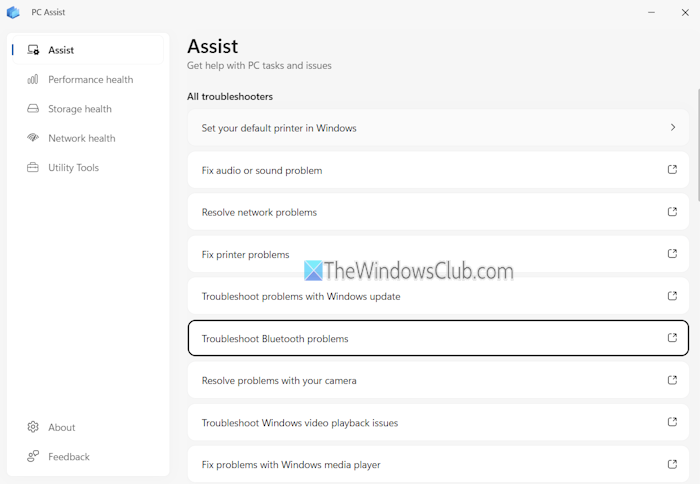
The Assist section lets you set the default printer, which we can already do using the Settings app. In addition, there’s a list of troubleshooters (that we once had in the Settings app) such as Fix audio or sound problems, Troubleshoot Windows video playback issues, Fix printer problems, Resolve network problems, Troubleshoot Bluetooth problems, and more.
However, the tool itself doesn’t run or provide any troubleshooter to assist you in fixing issues. Instead, it will prompt you to open the Get Help app to run the troubleshooter for a selected problem.
Performance health section
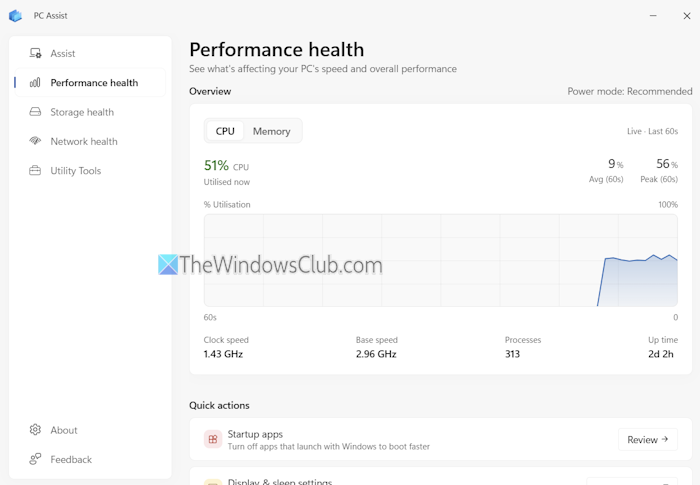
In the Performance health section, you can see what’s affecting the overall performance and speed of your PC. This section comes with CPU and Memory tabs with a real-time (last 60 seconds) graph for CPU and Memory utilization, including clock speed, base speed, cached memory, committed memory, average and peak utilization.
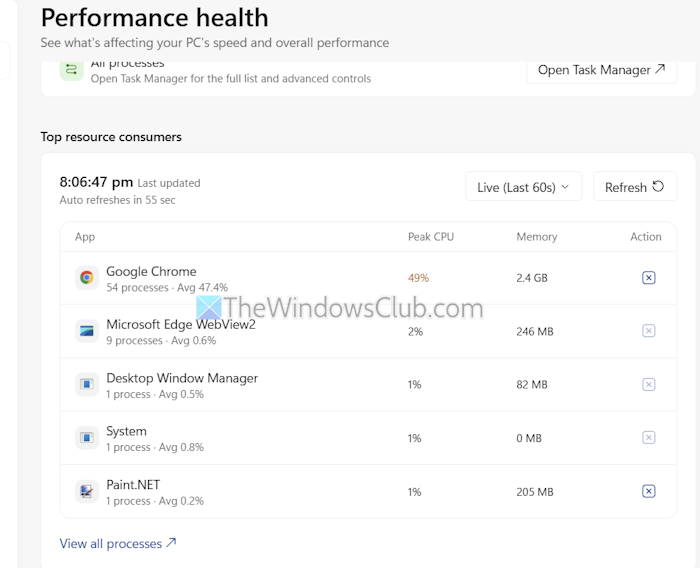
There’s a Top resource consumers section also present, which I find very useful. It shows the top 5 memory and CPU consumer apps for Live (Last 60s), Last 7 days, and Last 30 days. For each app, there’s an End task button.
Apart from this, it lets you review Startup apps to check their startup impact, last used time, and enable or disable Startup apps.
Related: Microsoft PC Manager review: 1-click optimizer for Windows 11
Storage health section
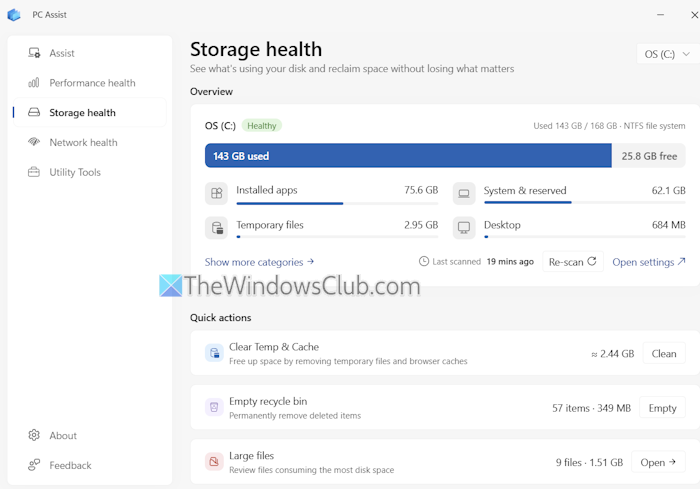
The Storage health section will remind you of the Storage page of the Windows 11 Settings app because it includes almost all those features. But there’s a Duplicate file cleaner which you won’t find in the Settings app. It lets you check the total number of duplicate files, groups, file paths, and size, and delete the selected items in one go.
Apart from this, you can get an overview of an OS drive or another drive with used and free space, installed apps, temporary files, snapshots, etc.
A Quick actions section is also available to clean temporary files and cache, empty the Recycle Bin, review large files and delete them, find and remove old downloads, and turn on or off Storage Sense.
Read: How to use Cleanup Recommendations on Windows 11 to Clear Disk Space
Network health section
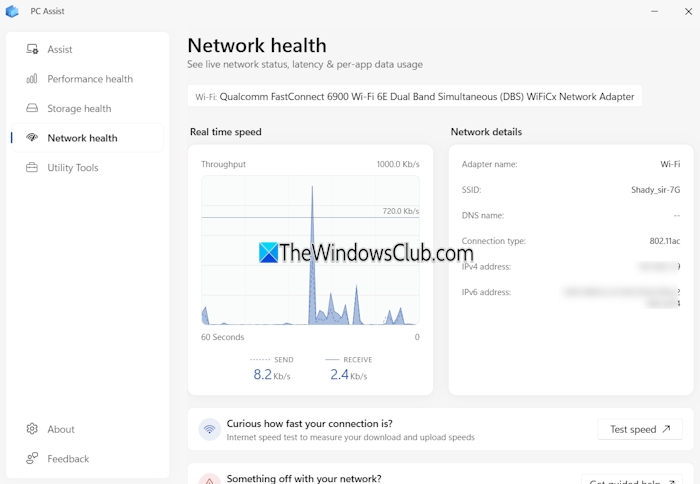
The Network health section is where you can see the live network status, per-app data usage, and latency. You will also see a real-time throughput graph or network speed chart and a network details section to check the adapter name, SSID, connection type, and other details.
What makes this section more useful is that you can monitor live bandwidth consumption across apps and track how apps consumed internet data over the last 7 days, 24 hours, or 30 days. Past usage and Live usage sections are available to check bandwidth consumption by apps.
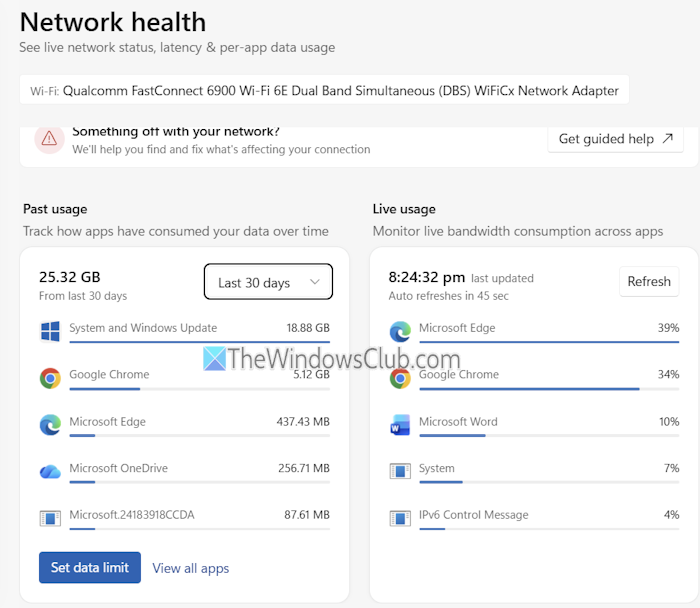
Other than that, there’s an option to perform an internet speed test, but it simply opens a Microsoft Bing page in your default browser with a network speed test tool.
Also read: Fix Network & Internet connection problems in Windows 11
Utility Tools section
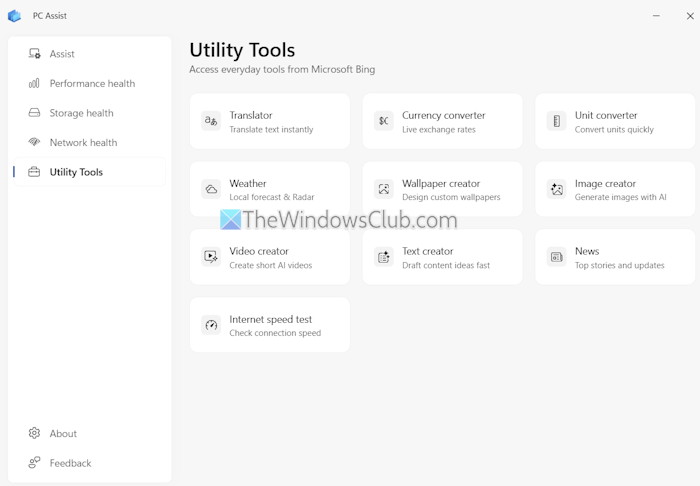
Utility Tools section is where you can access AI-powered and other everyday tools from Microsoft Bing. Available tools are Wallpaper creator, Image creator (to generate images with AI, Video creator to create short AI videos, Text Translator, Unit converter, etc. However, you can’t use these tools within its interface. Instead, it opens a Microsoft Bing page for the selected tool, which is another way to promote Bing. It would be better if it allowed access to all these tools directly within its own interface.
That’s all.
How is Microsoft PC Assist different from Microsoft PC Manager?
PC Manager helps you clean up, free storage, and improve performance. PC Assist offers a single dashboard for troubleshooting, monitoring system health, storage, and networking.
| Feature | Microsoft PC Assist | Microsoft PC Manager |
|---|---|---|
| Primary Focus | PC troubleshooting, diagnostics, and system monitoring | PC cleanup, optimization, and performance boosting |
| Troubleshooting | Built-in guidance and links to Get Help diagnostics | Limited troubleshooting features |
| Performance Monitoring | CPU, RAM, network, and storage health dashboards | Basic memory and performance monitoring |
| File Cleanup | Temporary files, large files, duplicate files | Stronger cleanup and storage management tools |
| Startup Management | Yes | Yes |
| Network Tools | Includes network monitoring and speed tests | Minimal network tools |
| Extra Utilities | Bing-powered tools such as Translator, Weather, and AI services | Focused mainly on Windows maintenance |
| Availability | Designed to work on more regional/language versions of Windows, but anyone can use it. | Targeted at English and Chinese Windows editions, but anyone can use it. |
How do I use Quick Assist?
To use the Quick Assist app in Windows 11, download it from the Microsoft Store and launch it. Select the Get assistance or Give assistance option to take or give tech support and sign in with your Microsoft account. Share the security code (to assist) or enter the code you were given to get assistance. Now, depending on the support type, you or another person can access the PC for support.
How do I get help with my PC?
There are different ways to get help with your PC. For example, if you need help with your browser, press F1 to open the browser help page. If you face trouble with Bluetooth, sound, camera, network, etc., you can use the Get Help app. For technical support, you can use the Quick Assist app or contact Microsoft support. AI tools like Copilot can also help with day-to-day problems.
Read next: Free Registry Cleaner, Junk File Cleaner and Optimizers for Windows 11.
内容来自 The Windows Club,版权归原作者所有。
阅读原文 ↗