
Unknown email address in Task Manager Users tab on Windows 11
Windows 11 allows users to create multiple profiles on the same computer. This is helpful if you share a computer or use it for both personal an…
Download Windows Speedup Tool to fix errors and make PC run faster
Windows 11 allows users to create multiple profiles on the same computer. This is helpful if you share a computer or use it for both personal and office work. Apart from your system’s performance, startup apps, and system processes, Task Manager also shows all user accounts currently signed in on your machine. You can view them under the Users tab. Some users notice an unknown email address in the Task Manager Users tab. If you encounter this issue, this article will help you resolve it.
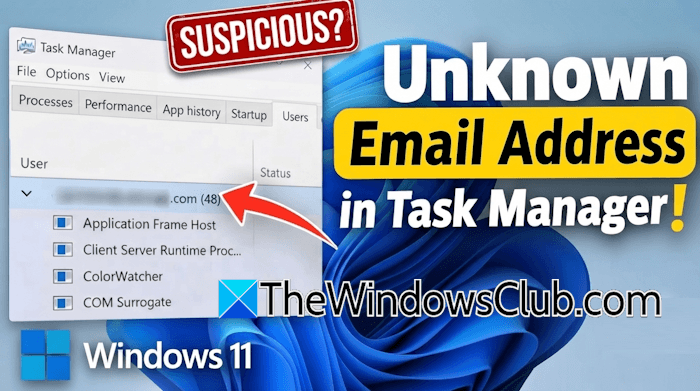
The Task Manager shows all the user profiles currently signed in to your system. This is helpful if you have a shared computer, as it lets you see if someone forgot to sign out of his account, so you can ask him to save unsaved work before shutting down the system. If you see an unknown email address you haven’t seen before, it can be a matter of concern. An unknown email address in the Task Manager Users tab can be a warning sign that your system might have been compromised. In this article, we will talk about important steps that you can take to protect your system and email account immediately after seeing the unfamiliar email address in the Task Manager.
Why is the Task Manager showing an unknown email address?
Every username or email address in the Task Manager is associated with a user profile on Windows. If a new email appears in the Task Manager, it means that a new user profile exists on your system. The following are the two main reasons for this issue:
- If you have a shared computer, someone in your family might have created a new user profile, and that profile is currently logged in. Or someone with an alias or linked account is active. That’s why Task Manager is showing the email address associated with that user profile.
- It may be a Work or School account
- Someone might have taken control of your PC.
Mistakes to avoid
An unknown email address in Task Manager does not prove that your system has been compromised. So avoid the following mistakes, as they can lead to permanent data loss and account access issues.
- Do not end the user profile process: Task Manager allows you to sign out of all other user accounts currently logged in. If you right-click on a particular user profile except the one to which you are signed in, you will see the Sign off option. Selecting that option signs out that user profile. Since you are not sure about the new email address, the user may lose unsaved work if you perform this action.
- Do not take immediate action: Noticing an unknown email address in the Task Manager can cause panic because your system may have files with confidential information. Because of this, you may want to delete the user profile associated with that email address immediately. Avoid this step if you share the computer. First, ask everyone who uses this PC whether they have created a new user profile.
- Avoid installing any third-party cleanup tools: While searching for this problem online, you may find resources that falsely claim their cleaning tools can remove unknown users from your system. Such tools may be malware. If you install and run such tools, they may execute malicious code on your system and lock it or send confidential information to the hacker.
Fixes for the Unknown email address in the Task Manager Users tab
Follow these suggestions to address this problem:
- Disconnect from the internet and back up all your data
- Terminate the user profile and run an antivirus scan
- Delete the unknown user profile
- Secure your Microsoft account(s)
- Change sign-in credentials on Windows.
All these fixes are explained in detail below.
1] Disconnect from the internet and back up all your data
If you are sure that no one has created a user profile on your system, that email address might be suspicious. The suspicious email address in Task Manager indicates that the user is currently signed in and may be running malicious scripts or locking your system remotely. Disconnect your system from the internet immediately. This will prevent the hacker from controlling your system remotely. Keep your system offline until you fix this problem. Now, back up all your data to an external hard drive.
2] Terminate the user profile and run an antivirus scan
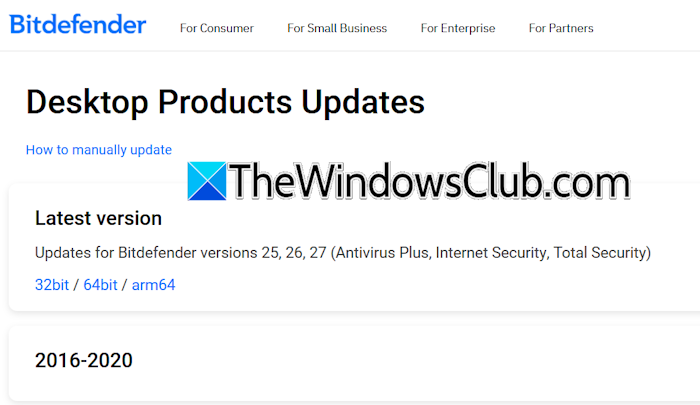
Terminate the user profile. Right-click on the email address in the Task Manager and select Sign off. Now, run an antivirus or antimalware scan. Make sure that your antivirus or antimalware software has the latest threat definitions. Connecting your system to the internet to update antivirus threat definitions may land you in trouble even if you have signed off the unknown user. All antivirus companies upload threat definitions on their websites for offline updates. These definitions are executable files. Use another device and download the latest threat definitions. Run the installer file to update the threat definitions offline.
Microsoft Safety Scanner is a free tool from Microsoft that finds and removes malware from your Windows computer. If you do not have a paid antivirus, you can use it. Additionally, many reputed antivirus companies provide a free version of their antivirus. Download and install them to remove malware from your system.
Run a Boot time scan for best results. Windows Defender also lets you perform a Windows Defender Offline Scan at boot time.
3] Delete the unknown user profile
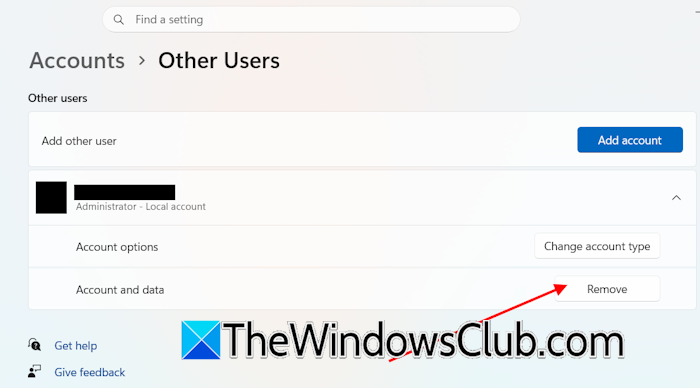
Delete the unknown user profile. Open Windows 11 Settings and go to the Accounts page. Now, open the Your accounts and Other users tabs one by one and see if an unknown user profile exists there. If so, remove it.
4] Secure your Microsoft account(s)
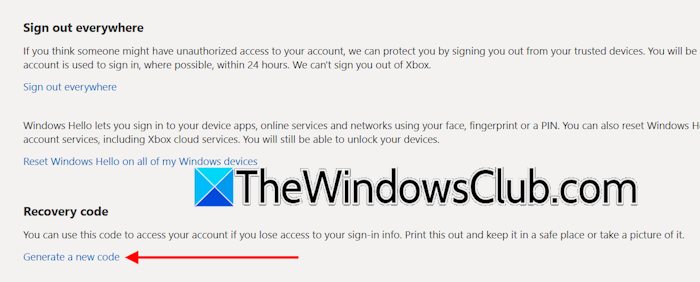
Since the new user profile is created automatically on your system, your other Microsoft accounts might be at risk. Secure all the Microsoft accounts you created on that device. On another computer, log in to all those Microsoft accounts one by one and change their sign-in credentials. Also, generate the account recovery code. For this, go to the Security tab after signing into your Microsoft account and click Manage how I sign in. Now, scroll down and click the Generate a new code link. Save this recovery code to a safe place. When you are done, sign out of your Microsoft account from all the devices. Click Sign out everywhere.
5] Change sign-in credentials on Windows
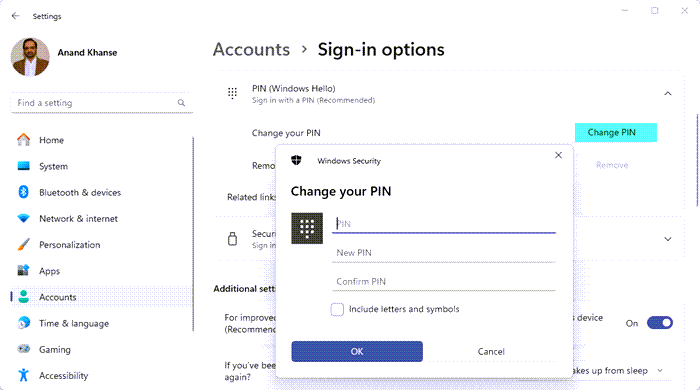
Now, change the sign-in credentials on Windows. Reset your PIN and other sign-in methods on your device and create a new one.
That’s it. I hope this helps.
What happens if a user account is deleted in Windows 11?
Deleting a user account permanently removes it from Windows, and this action cannot be undone. This also deletes personal data stored in that profile. Therefore, if you want to delete a user profile, back up all data stored inside that profile before proceeding. The user profile data is stored on the C drive. Data outside that user profile, i.e., on another hard drive partition, remains unaffected.
How do I fix an unknown user on Windows 11?
If you see a new user profile on your system and you are sure no one created it, the profile may be suspicious. In that case, itis best to delete it. Open Windows 11 Settings and go to the Accounts page. Look for that profile and click Remove. Also, run an antimalware scan to remove malware from your system.
Read next: User Accounts missing after upgrading to Windows 11.

Anand Khanse is the Admin of TheWindowsClub.com, a 10-year Microsoft MVP (2006-16) & a Windows Insider MVP (2016-2022). Please read the entire post & the comments first, create a System Restore Point before making any changes to your system & be careful about any 3rd-party offers while installing freeware.
内容来自 The Windows Club,版权归原作者所有。
阅读原文 ↗