
How to use the built-in browser in Claude Cowork
Download Windows Speedup Tool to fix errors and make PC run faster
Claude Cowork now has a new feature. It can browse the web in its own browser, built into the Claude Desktop app. There is no need to install an extension separately. Instead, whenever a task involves a website, the browser will open next to your task, and Claude will keep working. In this article, we’ll cover how it works, how to sign in to sites, and more.
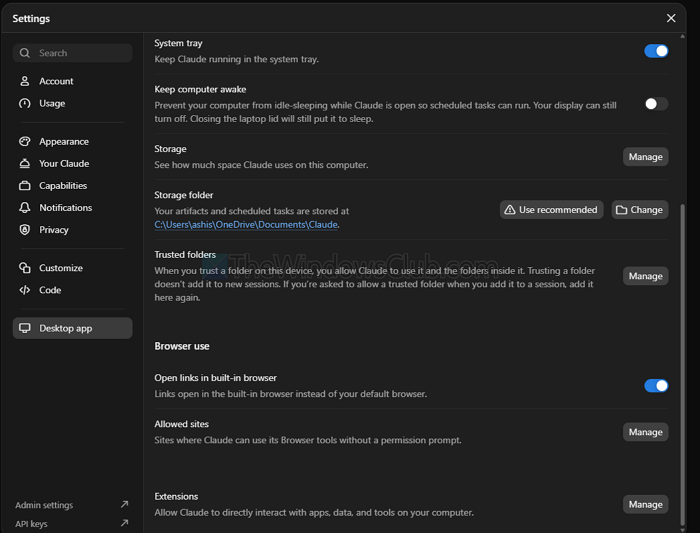
How to use Claude Cowork in browser?
You can use Claude Cowork in your browser in any of these ways:
- Claude.ai Web App: Open Cowork inside your regular browser to run cloud tasks on Anthropic’s servers.
- Claude in Chrome Extension: Install this browser extension, and Claude will work inside a side panel of your browser.
- Built-in Browser in Claude: Claude uses its own isolated browser side panel inside the Desktop app.
As this is a Claude Cowork feature, you would need a paid plan. It is available on Pro, Max, and Ultra plans, and on Team and Enterprise plans unless an organization owner has disabled it. Also, it works on desktop on Windows, macOS, and Linux. Along with that, it also works with Cowork on the web or mobile, as long as your desktop app is open and online.
How does the built-in browser work?
The whole thing depends on your task. If your task involves something like finding the price of a tool or browsing and booking hotels in a place like New Delhi, you should be able to see Cowork accessing its web browser.
A browser will promptly open in the side panel next to your task. Claude will browse the web for you. Links in the task transcript also open in the same panel. You can also keep working in other windows while it runs.
The browser has the same capabilities as Claude in Chrome. Your Cowork session runs in the cloud, but the browser itself lives in the desktop app. That is why the app needs to stay open.
How to sign in to websites
The first time the browser opens, Claude offers to import your logins from your existing browser. To allow it, click on Import Cookies.
The import is done site by site, so you can choose which logins to allow. For instance, you might allow login access for a tool that you use but avoid importing your social media logins. Also, banking, email, and single sign-on sites are unchecked by default. Cookie import supports Chrome, Edge, and Firefox on macOS, but only Firefox on Windows and Linux (beta). Safari is not supported. If your browser is not supported for import, sign in manually inside the built-in browser.
You can also skip importing and log in to sites as you go. Claude remembers logins across Cowork sessions, so you won’t need to sign in again each time.
How to change the default browser for Claude AI
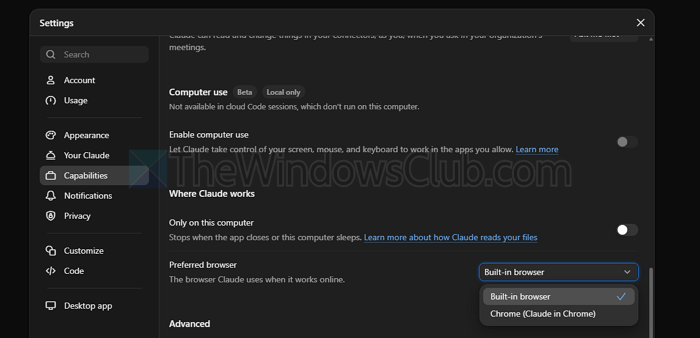
You can choose which browser Cowork uses for web tasks. This setting does not change your operating system’s default browser. For this, follow the steps below:
- Open the Claude Desktop app.
- Go to Capabilities > Preferred browser
- Choose Built-in Browser or Chrome (Claude in Chrome).
If you already use Claude in Chrome, it remains your preferred browser; otherwise, Cowork uses the built-in browser by default. If your preferred browser isn’t available, Claude tells you and continues with the other one.
Note: Claude’s combined chat and Cowork experience is rolling out, so some labels may differ. The built-in browser is separate from your regular browser—sites you sign in to there remain available to Claude in future Cowork sessions on that computer.
Overall, the built-in browser lets Cowork handle web tasks for you without requiring an extension on your own browser. So go ahead and try the feature out and see how it works for you.
Does Claude Desktop need to stay open?
Yes. The built-in browser requires Claude Desktop to remain open and connected to the internet. This also applies when you start or continue the task from the web or mobile app.
Can I import Chrome logins on Windows?
Cookie import currently supports Firefox on Windows, rather than Chrome or Edge. You can still use the built-in browser by signing in to websites manually.

Ashish holds a Bachelor's in Computer Engineering and is a veteran Windows. He has been a Microsoft MVP (2008-2010) and excels in writing tutorials to improve the day-to-day experience with your devices.
内容来自 The Windows Club,版权归原作者所有。
阅读原文 ↗