
How to use GPT-6 Astra in ChatGPT
OpenAI’s GPT-6 Astra helps users who need more than quick answers from a chatbot. Whether you want to work on coding projects, do in-depth research, analyze data, or automate repetitive tasks, Astra can manage workflows that involve multiple steps and more reasoning. In this article, we will explore how to use GPT-6 Astra in ChatGPT.
Before getting started, you should know that GPT-6 Astra and GPT-6 Pro are closely related but are not interchangeable names. GPT-6 Pro is powered by GPT-6 Astra, and its availability depends on your subscription.
- Free and Go: Do not have access to GPT-6 Astra in regular ChatGPT conversations.
- Plus: Provides limited access to Astra through ChatGPT Work and Codex.
- Pro ($100 and $200), Business, and Enterprise: Eligible users can access GPT-6 Pro, powered by GPT-6 Astra, in ChatGPT. Access in managed workspaces can depend on administrator permissions.
You don’t need to install a separate app to use Astra in ChatGPT. If you’re using the desktop app, make sure it’s updated to the latest version. You can access Astra in two ways, depending on your plan and the work you want to do. If your plan allows it, you can select GPT-6 Pro in regular ChatGPT conversations. Alternatively, you can use Astra through ChatGPT Work.
1] Select GPT-6 Pro from the model picker
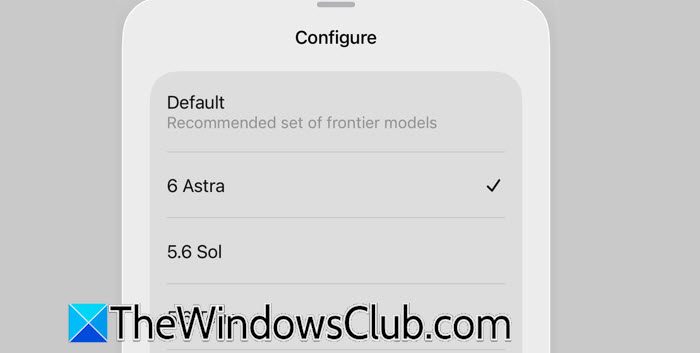
If you have an eligible Pro, Business, or Enterprise subscription, you can access GPT-6 Astra through GPT-6 Pro. You can follow the steps mentioned below to do the same.
- Open ChatGPT.com in your browser and sign in to your account.
- Start a new conversation or open an existing chat.
- Click the model selector at the top of the conversation.
- Look for GPT-6 and select the Pro option, if available.
- Enter your prompt and let ChatGPT process your request.
GPT-6 Pro uses Astra for tough tasks that need deeper thinking, research, and problem-solving. You can use it to analyze long documents, tackle complex technical issues, or create detailed project plans. Remember, if you choose regular GPT-6, you may not be using Astra. To access the Astra-powered model in regular ChatGPT conversations, you need to select the Pro option.
Read: ChatGPT memory not working [Fix]
2] Use GPT-6 Astra through ChatGPT Work
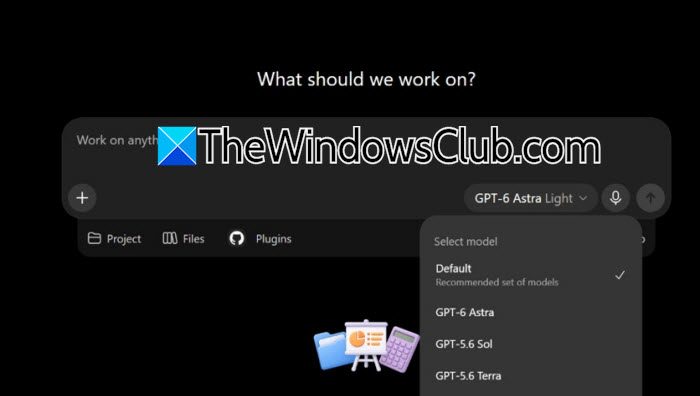
If you have a ChatGPT Plus subscription, you can access limited Astra usage through ChatGPT Work. Unlike regular ChatGPT conversations, Work is designed to handle longer tasks and produce finished deliverables. Follow the steps below to do the same.
- Open ChatGPT on the web or desktop application.
- Switch from Chat to Work.
- Open the model selector.
- Select GPT-6 Astra from the available models.
- Describe the task you want ChatGPT to complete.
- Provide the necessary files, instructions, and references.
You can ask Astra to review an Excel spreadsheet, identify unusual spending patterns and create a summary with charts. You can also give it a set of documents to extract key information, compare the results, and prepare a report. The benefit of using Work is that Astra can manage different steps of a task instead of just replying to your request. It can work with supported applications and complete tasks that usually need manual effort. Remember, Plus users have limited access to Astra in Work and Codex. Usage depends on the task’s complexity, length, and reasoning settings.
Read: How to use ChatGPT Desktop App for Windows 11
3. Use GPT-6 Astra in Codex for coding tasks
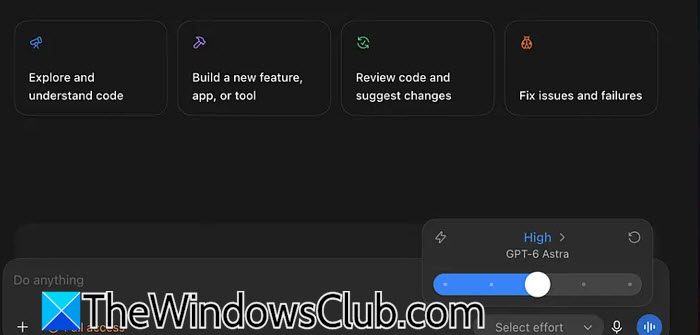
If you are a developer, Codex is another way to work with GPT-6 Astra. It is particularly useful when you want the model to work with code, inspect a project, troubleshoot errors, or implement changes. To use it, here is what you need to do.
- Open the ChatGPT desktop application or access Codex through its supported interface.
- Sign in using your ChatGPT account.
- Open Codex and select the model picker.
- Choose GPT-6 Astra, provided your subscription and workspace allow it.
- Describe the coding task and provide the relevant project files or repository context.
You can ask Astra to inspect an existing codebase, identify bugs, suggest improvements, write tests, or implement a feature. Rather than just suggesting code snippets, it can work through the development process and verify changes using available tools. If you are using Codex CLI, make sure you have version 0.153.0 or later to use Astra.
Hopefully, this guide will help you use GPT-6 Astra.
Read: How to Install OpenAI Codex on Windows with Security Measures
How to get Astra ChatGPT?
To access GPT-6 Astra in ChatGPT, you need an eligible subscription. Pro, Business, and Enterprise users can access the Astra-powered GPT-6 Pro model through the model picker. Plus users can access Astra through ChatGPT Work and Codex, subject to usage limits. Once you have an eligible plan, sign in to ChatGPT, open the relevant interface, and select the available Astra model. Free and Go users cannot directly access Astra through these options.
Read: Muse vs Dots: Which AI agent is best for Windows and Why?
Is GPT-6 Astra good?
Yes, GPT-6 Astra is a strong choice for users who regularly work with complex tasks that require deeper reasoning and multiple steps. It is particularly useful for coding, analyzing large datasets, conducting research, and handling lengthy documents. Unlike a model used primarily for quick conversations, Astra is designed to work through demanding problems and complete more involved workflows. However, it may be unnecessary for everyday questions, simple writing tasks, or basic information searches where a standard model is sufficient.
Also Read: Claude Code vs OpenAI Codex: Which AI Coding Assistant is better.
内容来自 The Windows Club,版权归原作者所有。
阅读原文 ↗