
We can’t reach the Windows Insider Program right now
Download Windows Speedup Tool to fix errors and make PC run faster
The Windows Insider Program is a great way to test out new build, but some users, as of late, are failing to use the Insider build as they are seeing the following error message.
We can’t reach the Windows Insider Program right now. Please try agin later or check the forum for info.
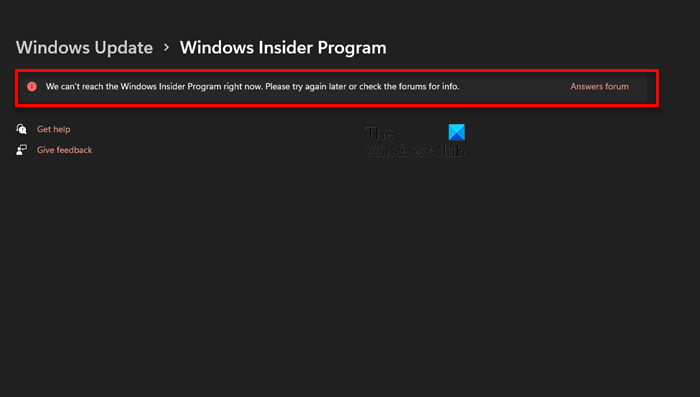
If you are seeing this error message, then you are in the right place; we have a few suggestions that are likely to help you resolve this issue.
If you see “We can’t reach the Windows Insider Program right now” in your Windows Update Settings page, then these are the things you can do to resolve the issue:
- Enable Diagnostic and Feedback
- Look for Windows Update
- Opt for Explicit Permission
- Install Insider Preview Manually
Let us talk about them in detail.
1] Enable Diagnostic and Feedback

If you are seeing the error in question, then the first thing you should do is check if your Diagnostic and Feedback option is enabled. Follow the steps below to do so.
- Open Settings by Win + I.
- Go to Privacy & Security > Diagnostics & feedback.
- From Diagnostics & feedback, enable Send optional diagnostic data.
After enabling the option, it’s time to restart your computer and check if the issue persists.
2] Look for Windows Update
For many users, updating their OS or checking for updates was enough to resolve this issue. So, you need to open Settings by Win + I, go to Windows Update, and download all the pending updates. After doing that go back to Windows Insider Program page and hopefully, you will not see this message.
3] Opt for Explicit Permission

You need to make sure that the DataCollection key in Registry Editor has proper permissions for Insider Preview to work. We are going to check and give it the required permission.
Open Registry Editor by searching it out of the Start Menu. Then navigate to the following location.
HKEY_LOCAL_MACHINE\SOFTWARE\Microsoft\Windows\CurrentVersion\Policies\DataCollection
Right-click on DataCollection and select Permissions. Now click Advanced, check if the System is the Owner, and then click Disable inheritence.
A pop-up will appear, where you need to click on Convert inherited permissions into explicit permissions on this object option.
Finally, click Enabled inheritence.
After that, restart your system and try accessing the Insider build.
4] Install Insider Preview Manually
If nothing works then you can download the Window 11 Insider Preview ISO file and install it on your computer easily. This way you don’t have to deal with these notorious bugs and issues.
Hope this helps.
Read: How to Switch from Insider Preview to Stable Build of Windows 11.
How do I get into Windows Insider Program?
Windows Insider Program is a great way to access early Windows releases. You can just sign up for Insider Preview, get the build and install it on your system. If you don’t know how to do it, read our guide to getting Windows 11 Insider Preview now.
How to leave the Windows Insider Program?
You can easily leave the Windows Insider Program by following the given steps.
For Windows 11
- Open Settings.
- Go to Windows Updates > Windows Insider Program.
- Click Stop getting preview builds.
- Finally, use the toggle to enable Unenroll this device when the next version of Windows releases.
For Windows 10
- Open Settings.
- Go to Updates & Security > Windows Insider Program.
- Finally, Stop Insider builds.
This will stop you from receiving Insider builds and switch you to a stable version.
Read Next: Can’t switch Windows Insider Channel on Windows 11.

Anand Khanse is the Admin of TheWindowsClub.com, a 10-year Microsoft MVP (2006-16) & a Windows Insider MVP (2016-2022). Please read the entire post & the comments first, create a System Restore Point before making any changes to your system & be careful about any 3rd-party offers while installing freeware.
内容来自 The Windows Club,版权归原作者所有。
阅读原文 ↗